Creating Product Variations
A step-by-step guide to creating product variations in the system
Creating Product Variations
Creating product variations is a streamlined process that automatically generates all possible combinations of your product attributes and options.
Before You Begin
Before creating variations, ensure you have:
- Added all necessary attributes to your product
- Defined the options for each attribute
- Decided which attributes you want to include
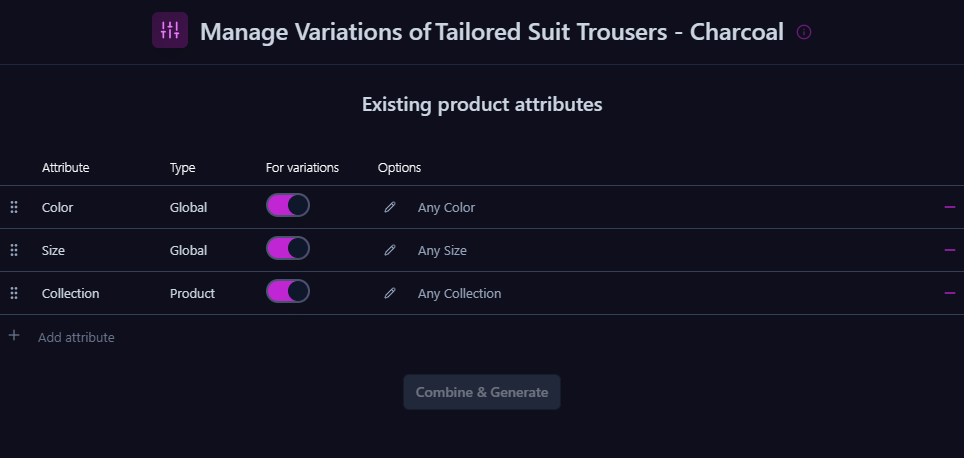
Setting Up Attribute Options
1
Configure Options for Each Attribute
For each attribute:
- Add all required options using either:
- Product attribute options
- Global attribute terms
- Consider using "Any" option when:
- All options have the same price
- No separate inventory tracking is needed
- No separate images are required
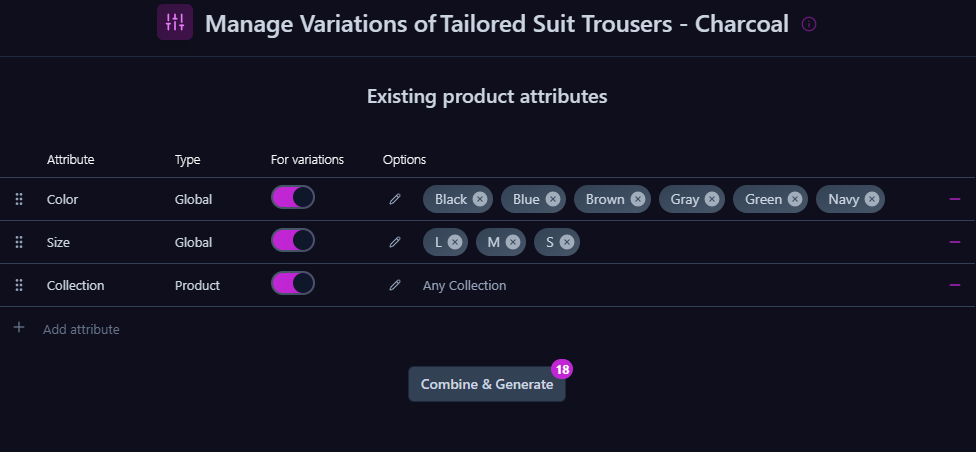
Generating Variations
1
Automatic Combination Generation
Once your attributes and options are set up:
- Click the "Generate Variations" button
- The system will automatically:
- Create all possible combinations
- Generate unique IDs for each variation
- Set default values for price and stock

For example, with:
- Color: Red, Blue
- Size: S, M, L
The system will create 6 variations (2 colors × 3 sizes)
2
Variations Table
After generation, all variations appear in a table showing:
- Variation attributes combination
- Regular price
- Sale price
- Stock status
- Menu order
Tip:
Review all generated variations to ensure they match your product requirements.