Import from Google Sheets
Guide for importing and synchronizing products using Google Sheets
Import Products from Google Sheets
The WhizManage system allows you to manage products using Google Sheets efficiently and easily.
New Features 🆕
- Product Selection: Choose which products appear in the file
- Category Filtering: Quick filtering by categories
- ACF Fields: Support for Advanced Custom Fields
- JetEngine Fields: Support for custom JetEngine fields
Benefits of Google Sheets
Collaborative Work
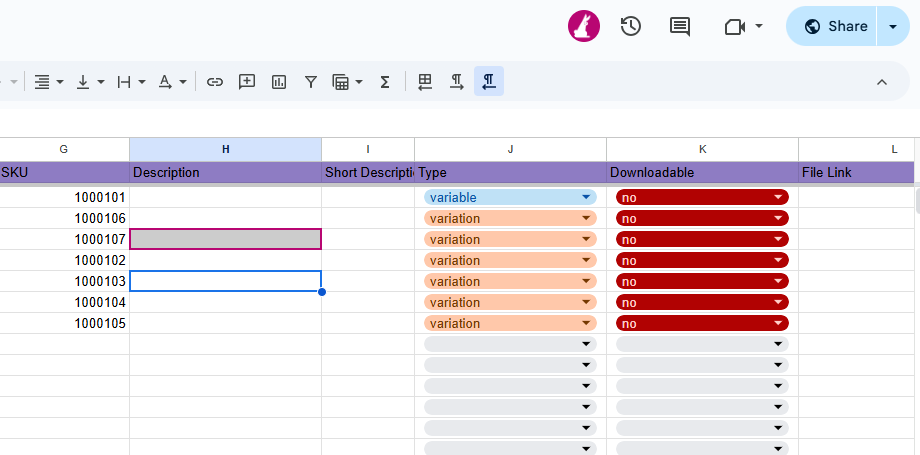
Google Sheets allows:
- Multiple users working simultaneously
- Instant synchronization of changes
- Version history and ability to revert to previous versions
Accessibility from Anywhere
Data is available:
- From any device with internet connection
- No need to install software
- High security with advanced permission options
Easy Management
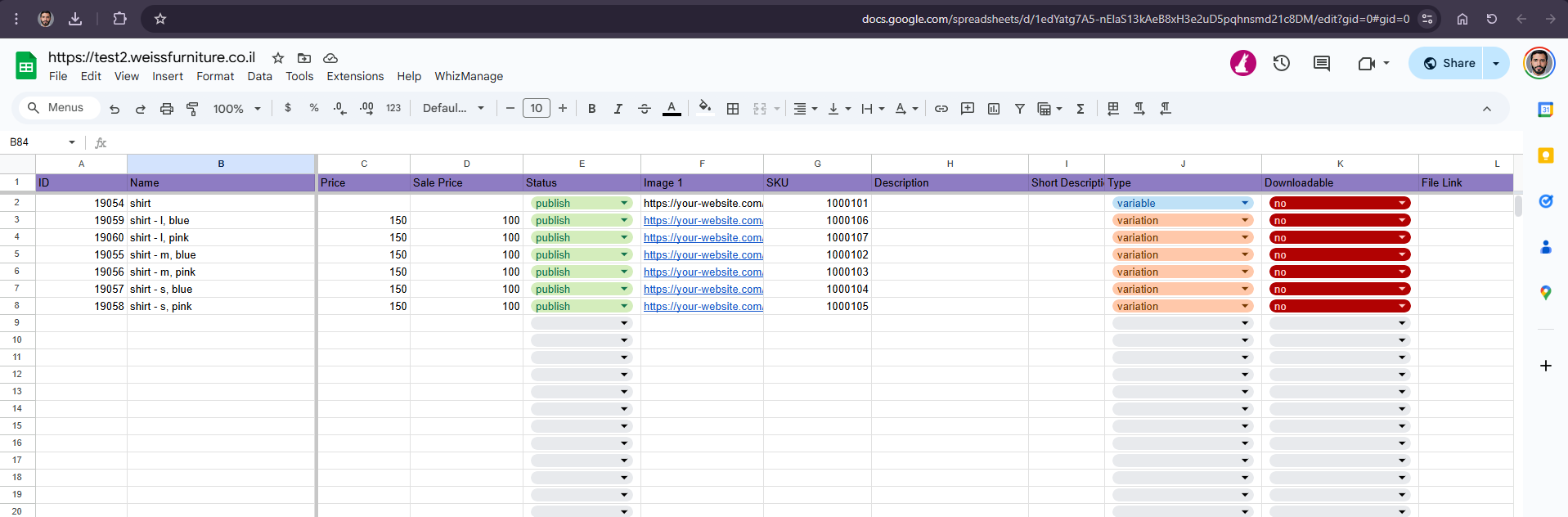
The familiar management interface allows:
- Simple editing of product data
- Using formulas for automatic calculations
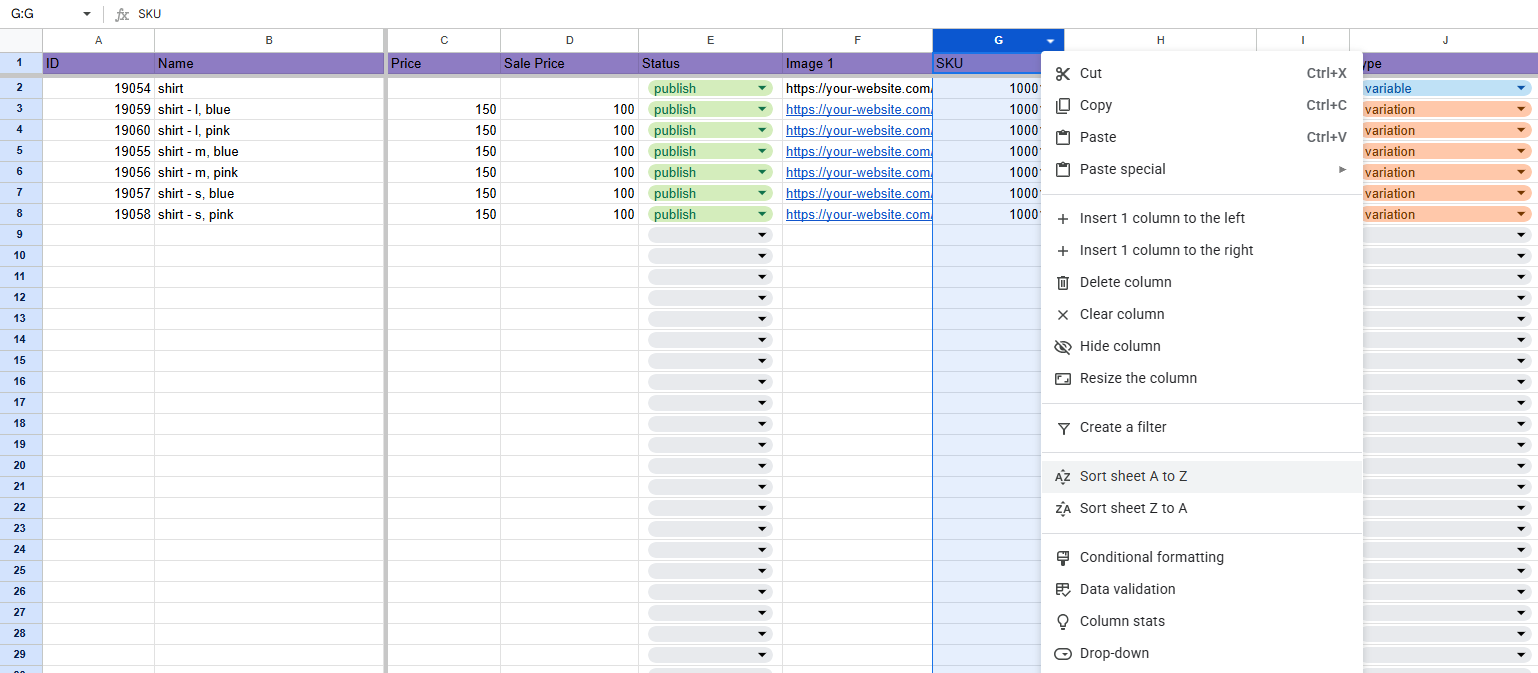
- Easy sorting and filtering of information
Setting Up the File
Product Selection
Select Products for Import
- Navigate to Product Management
- Click "Select Products for Import"
- Use search and filtering for selection
- Click "Save Settings"
Tip:
You can filter by categories and search by name or ID.
Create Google Sheets File
Create a Copy of the Example File
- Open the attached example file
- Click "File" > "Make a copy"
- Name the file identical to your website's URL (e.g., 'mystore.com')
Important:
Matching the name to your domain is critical for automatic integration.
Set Sharing Permissions
- Click the "Share" button in the top corner
- Set to "Anyone with the link can view"
- Copy the displayed link

Activate WhizManage Script
- Look for a new "WhizManage" tab in the top menu
- Click "WhizManage" > "Update File"
- First time: authorize permissions for the script
Important:
When authorizing, ensure you're logged into your Google account and trust the WhizManage application.
Connect File to System
Open Import Interface
In WhizManage system:
- Navigate to Product Management
- Click "Import" button
- Select "Google Sheets file" option

Enter Link and Connect
- Paste the copied link
- Click "Check Connection" to verify validity
- Click "Save Settings" to save connection
Tip:
Link format: https://docs.google.com/spreadsheets/d/[FILE_ID]/edit?usp=sharing
File Structure
Basic Fields
| Column Name | Description | Required |
|---|---|---|
| Product Name | Full product name | Yes |
| Price | Regular product price | Yes |
| Sale Price | Sale price (optional) | No |
| Main Image | URL to main image | Yes |
| SKU | Unique catalog number | No |
| Categories | Categories separated by commas | No |
| Tags | Tags separated by commas | No |
| Detailed Description | Full product description | No |
| Short Description | Product summary | No |
| Type | Product type (simple, variable, etc.) | Yes |
| Status | Product status (publish, draft, etc.) | No |
| Stock | Available stock quantity | No |
Custom Fields 🔧
The system supports custom fields:
ACF / JetEngine Fields
- Auto-detection: System automatically detects existing ACF fields
- Suffix: Custom fields appear with suffix "(m)"
- Attributes: Custom field attributes receive suffix "(a)"
- Field types: Text, numbers, dates, boolean
Structure Example
| Product Name | Price | Color (a) | acf_warranty (m) | jet_brand (m) |
|---|---|---|---|---|
| iPhone 15 | 3999 | Silver | 24 months | Apple |
| Samsung S24 | 3499 | Black | 18 months | Samsung |
Note:
Custom fields are added automatically based on selected products.
Product Variations
For importing products with variations:
- Type column with "variable product" value
- Attribute columns with "(a)" suffix
- Variation rows - each variation in separate row
Important:
Parent product and variations must appear sequentially in the file.
Data Synchronization
Update Site from File
After editing data in file:
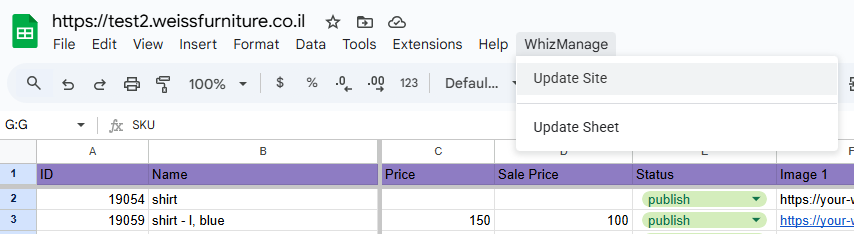
- Open Google Sheets file
- Click "WhizManage" menu
- Select "Update Site" option
- Script automatically sends changes to site

Update File from Site
For reverse sync (site to file):
- Open Google Sheets file
- Click "WhizManage" menu
- Select "Update File" option
- Script pulls latest data from site
Tip:
Update file before significant editing to ensure you work with current data.
Tips and Troubleshooting
Organization and Backup
- Use colors to classify products
- Create periodic file copies
- Use Google Sheets version history
Common Errors
- "Cannot access file": Ensure file is shared for public viewing
- "ACF field not recognized": Verify field exists and is active
- "Product list not saved": Check internet connection
Important:
Remember that changes in Google Sheets won't appear on site automatically until you run "Update Site".