Installation
The following guide covers the process of installing the plugin and how to initially configure it to get started
Installing the WhizManage Plugin
The WhizManage plugin is installed similarly to any other WordPress plugin. Below is a simple guide for installing the system and activating it.
Downloading the Plugin
There are two ways to download and install the WhizManage plugin:
Option 1: Install directly from the WordPress admin interface
- Log in to your WordPress admin area
- Go to "Plugins" > "Add New"
- In the search box, type "WhizManage"
- When the plugin appears in the list, click "Install Now"
Option 2: Download from the WhizManage website and install manually
- Visit the WhizManage website
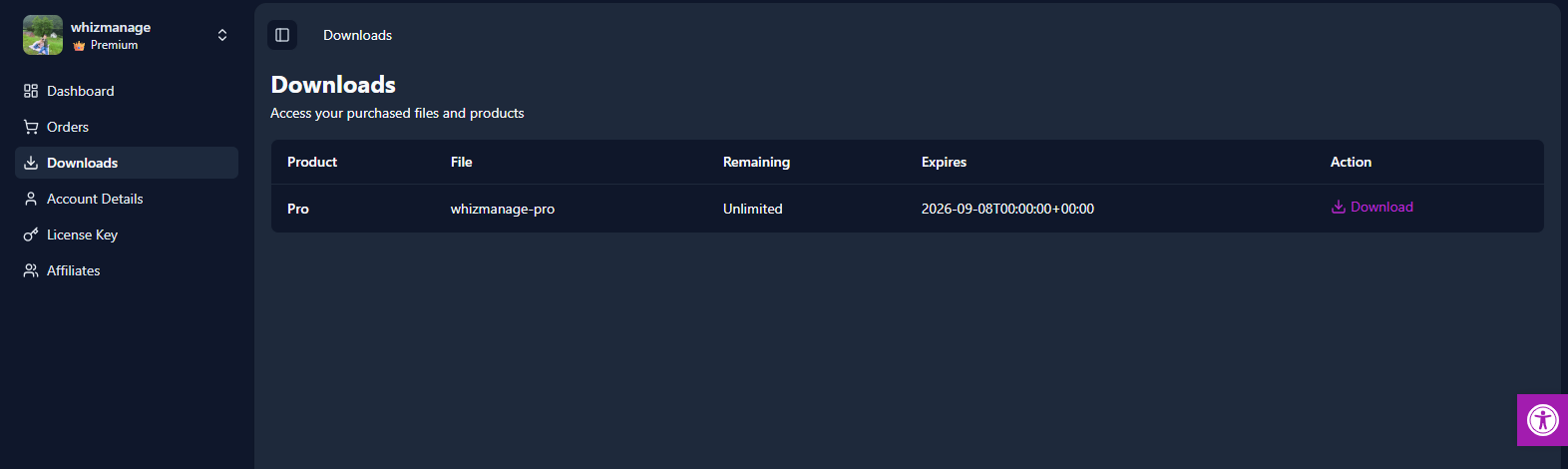
- Go to the downloads page and download the plugin ZIP file
- In your WordPress admin, go to "Plugins" > "Add New"
- Click "Upload Plugin" at the top of the screen
- Select the downloaded ZIP file and click "Install Now"
Activating the Plugin
- After installation, click "Activate Plugin"
- The WhizManage plugin will be added to the WordPress sidebar menu
- Click on "WhizManage" in the sidebar menu to enter the plugin management interface
Note:
After the initial activation, the WhizManage plugin is available in the basic (free) version with certain limitations on functionality.
Entering License (for Pro Version Users)
If you've purchased one of the Pro versions of WhizManage:
- Make sure you've received the license code by email after purchase (You can also find the license in your personal area on the WhizManage website)
- In the WhizManage management interface, click on your user image in the top corner
- In the dropdown menu, select "License"
- Enter the license code you received in the appropriate field
- Click "Activate License"
- You will receive a confirmation message that the license has been successfully activated
Important:
Make sure you enter the license code exactly as received, including dashes and upper/lowercase letters.
System Requirements
For optimal operation of WhizManage:
- Updated WordPress version
- Updated WooCommerce version
- Modern browser (Chrome, Firefox, Edge, Safari)
- Stable internet connection
Tip:
For optimal performance, it's recommended to use the latest versions of WordPress and WooCommerce.